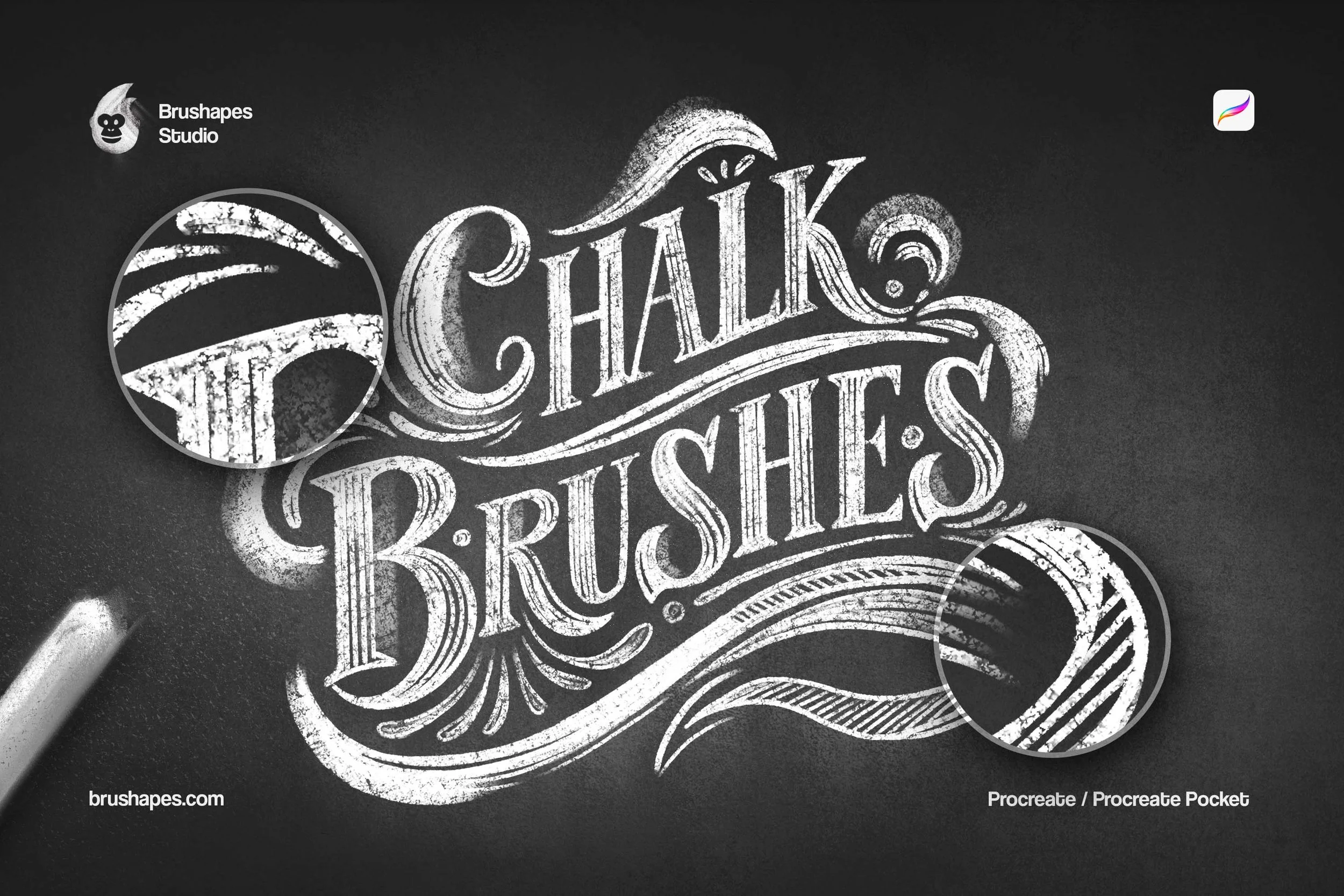
 Image 1 of 8
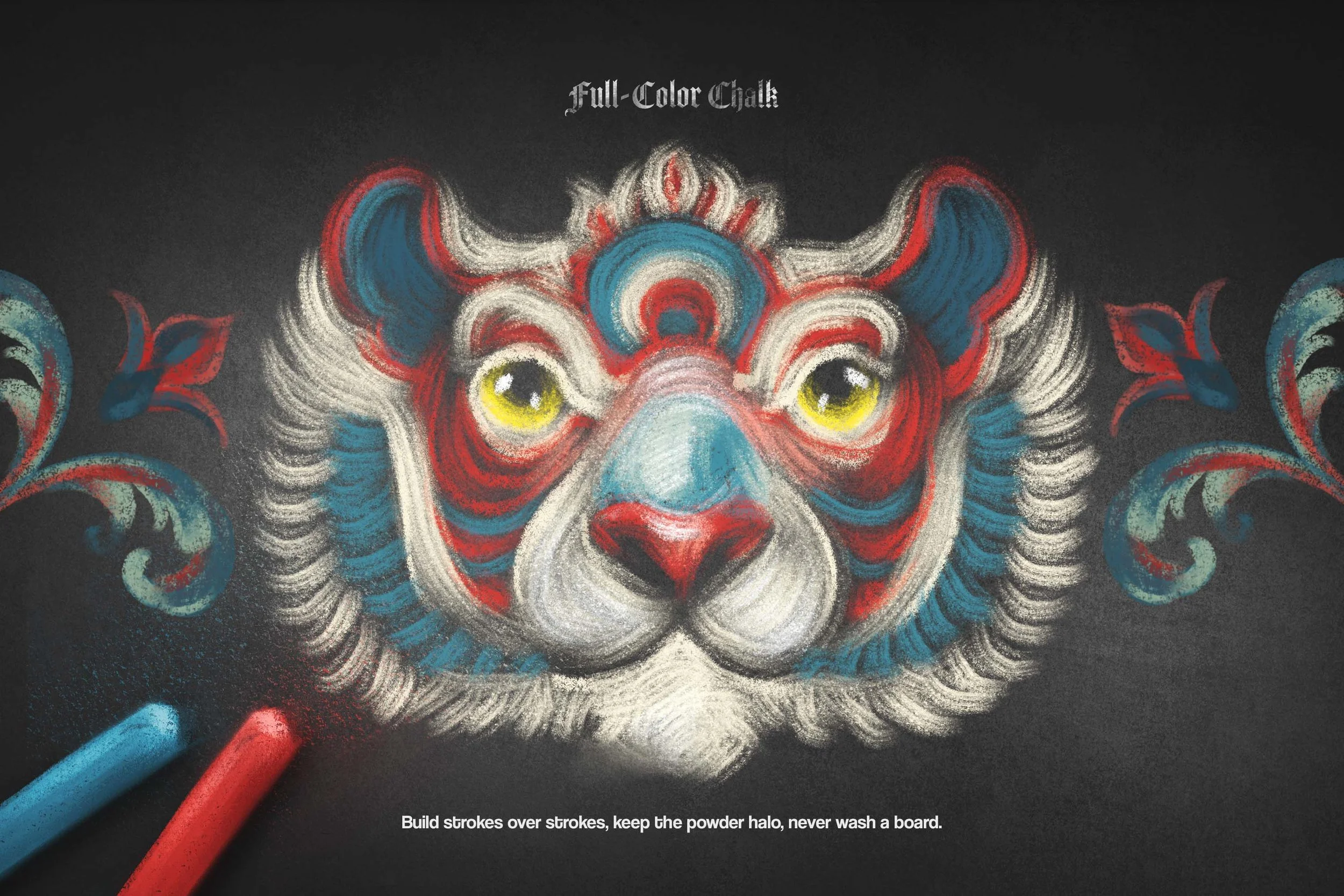 Image 2 of 8
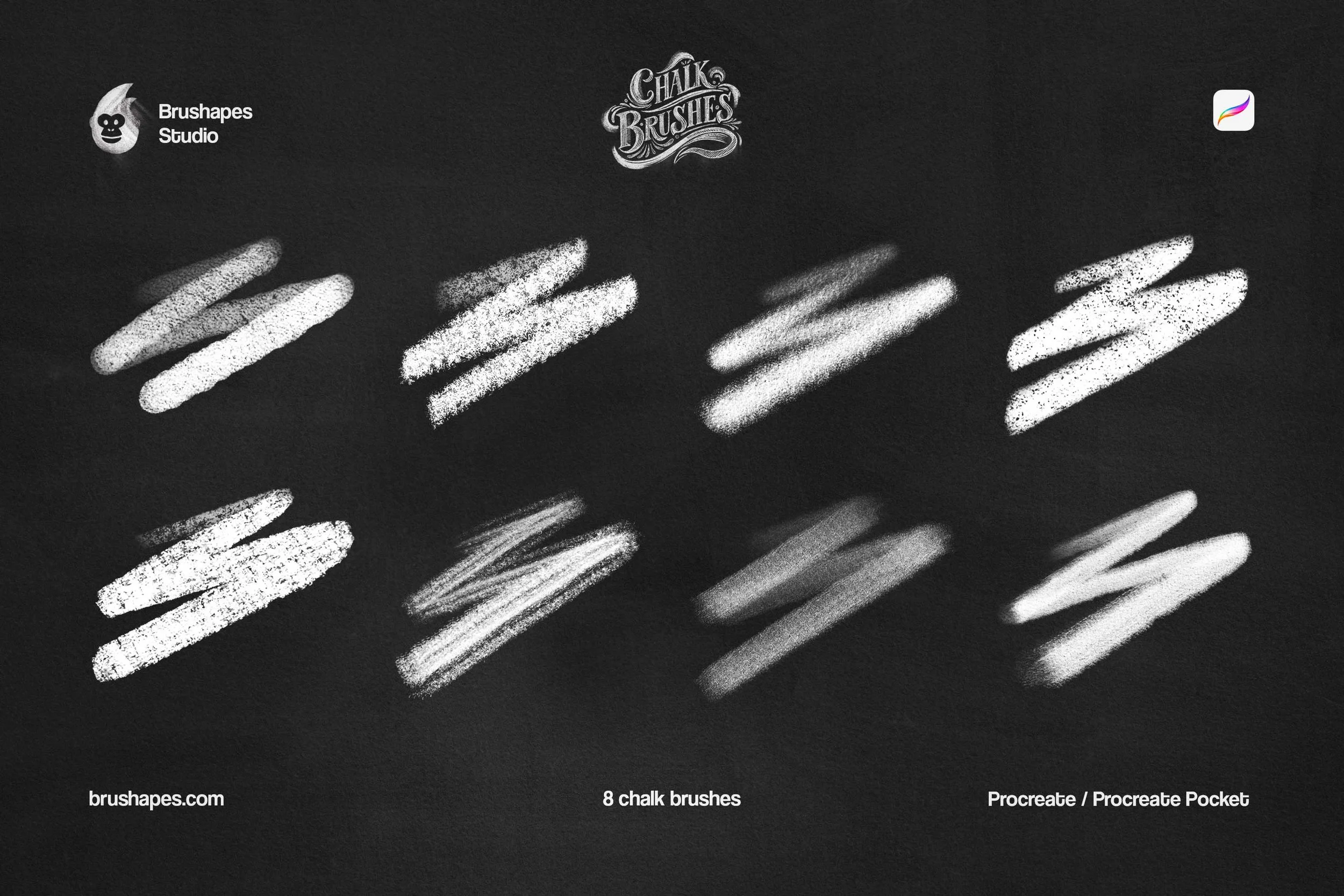 Image 3 of 8
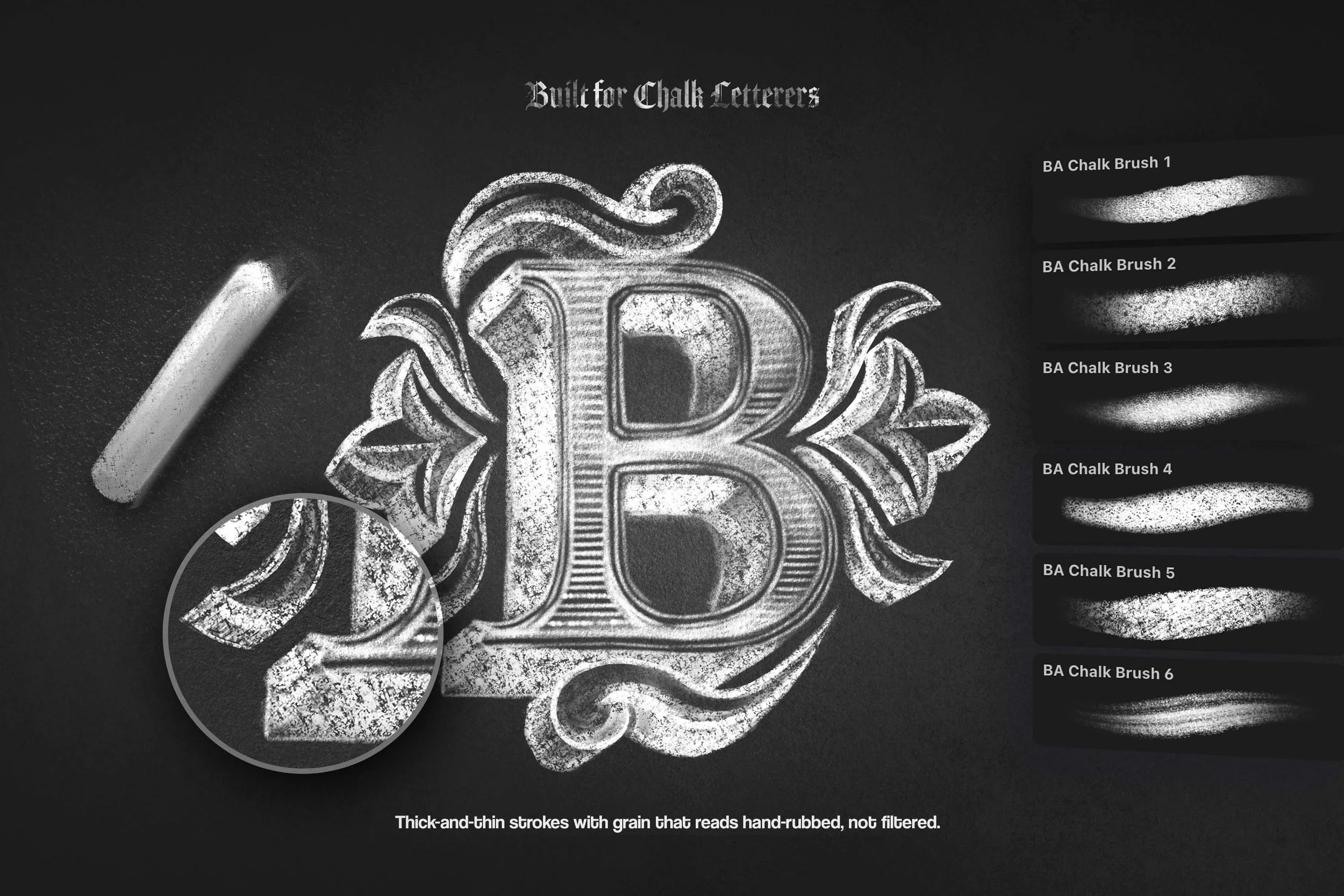 Image 4 of 8
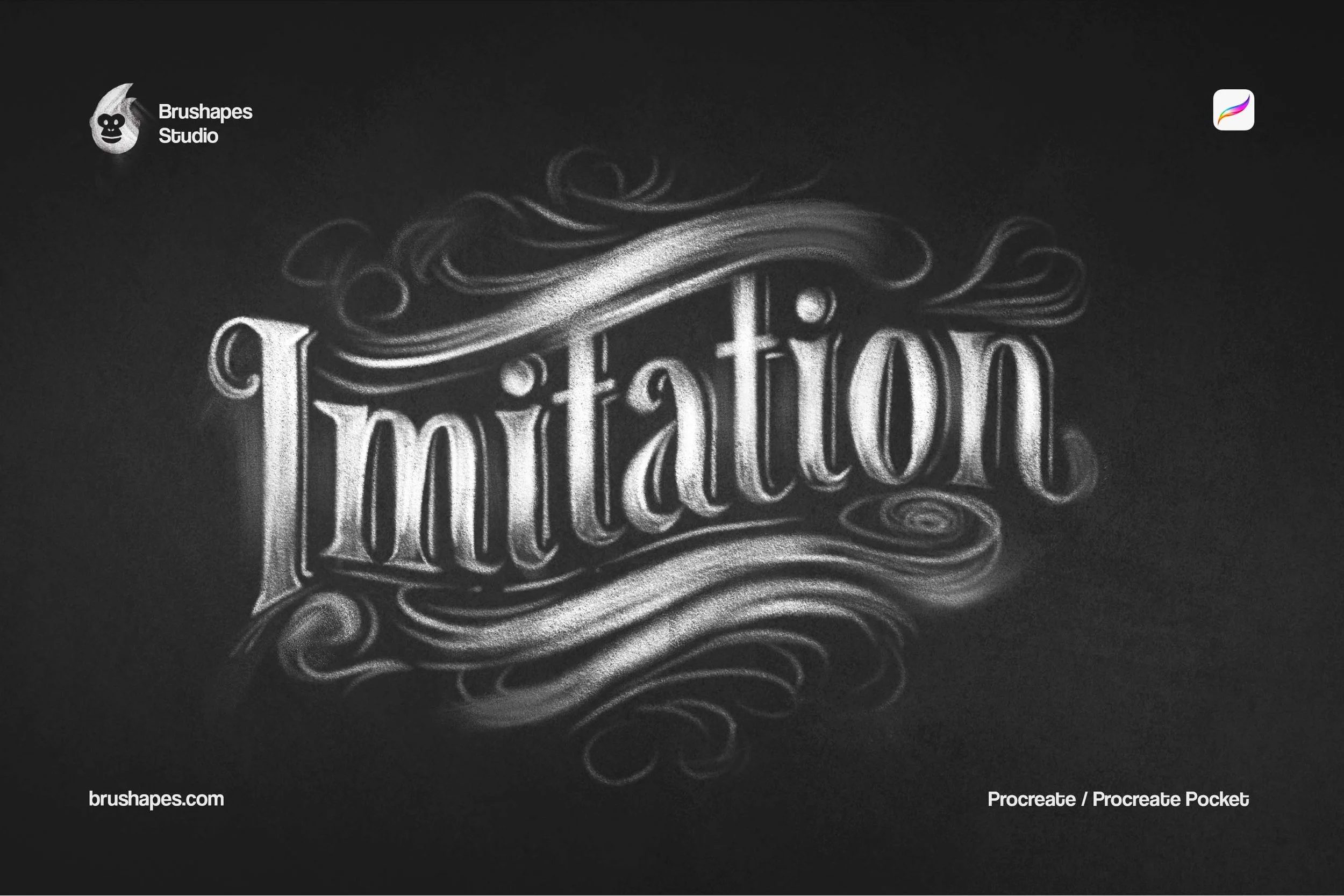 Image 5 of 8
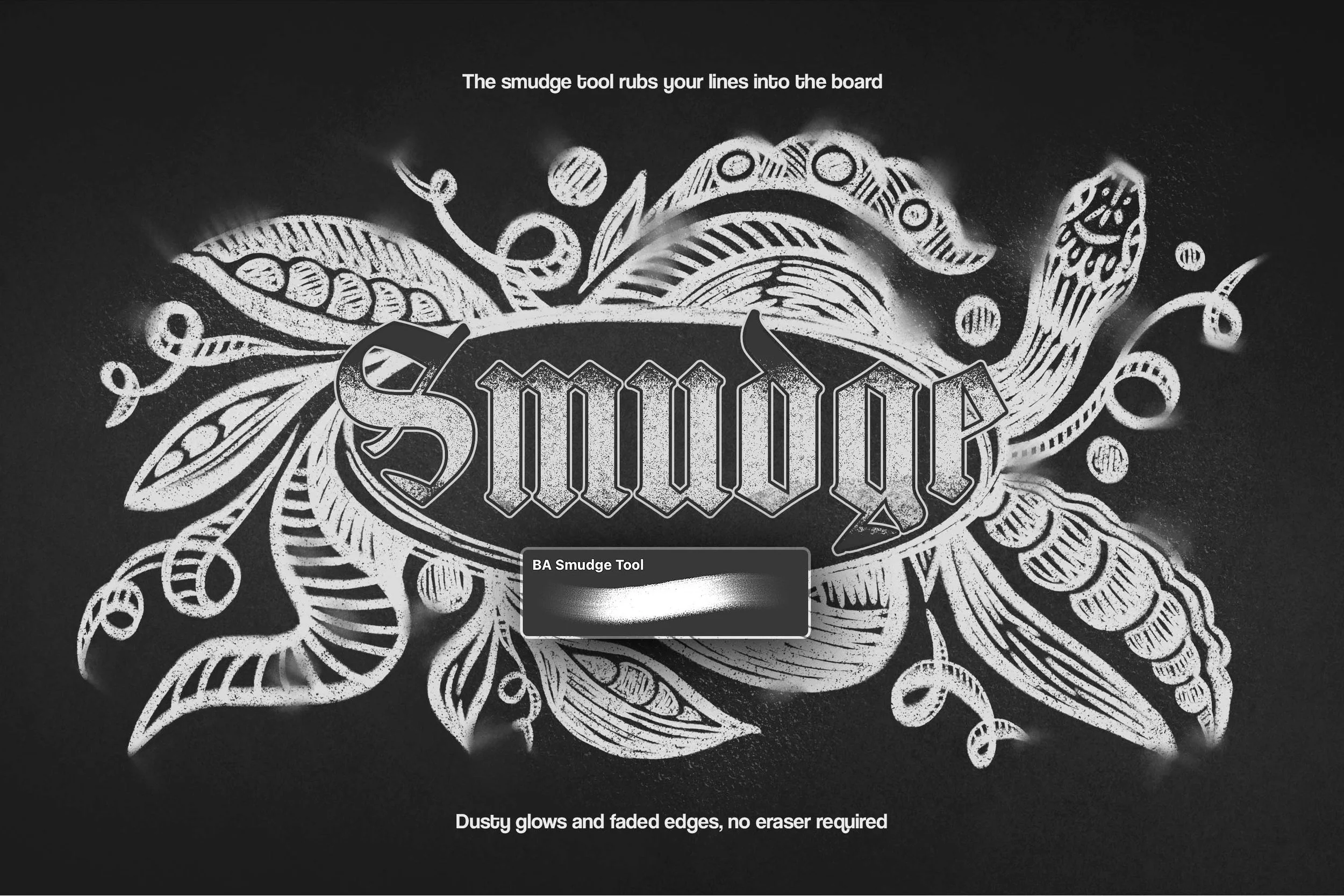 Image 6 of 8
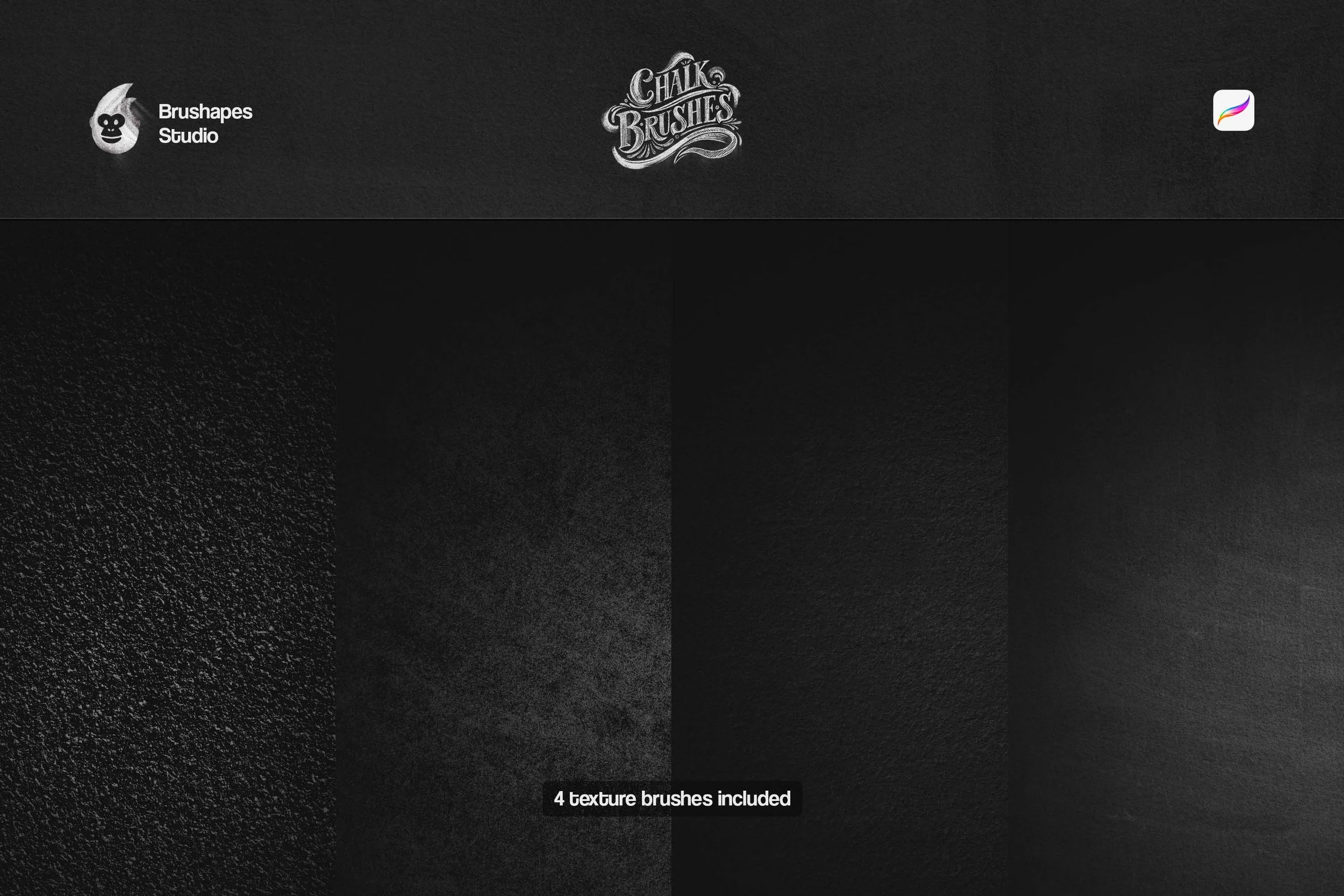 Image 7 of 8
 Image 8 of 8
Midnight Chalk Procreate Brushes

File size: 86 MB
Compatibility: Procreate 5+ .brushset (tested on 5.4) — 13 brushes, smudge tool, 4 chalkboard textures. Tap to install; Apple Pencil pressure and tilt drive the thick-and-thin.
8 chalk brushes
4 chalk background brushes
1 smudge tool brush
4 chalk background textures (JPG, 4500x3000, 300dpi)
ZIP package, Direct download
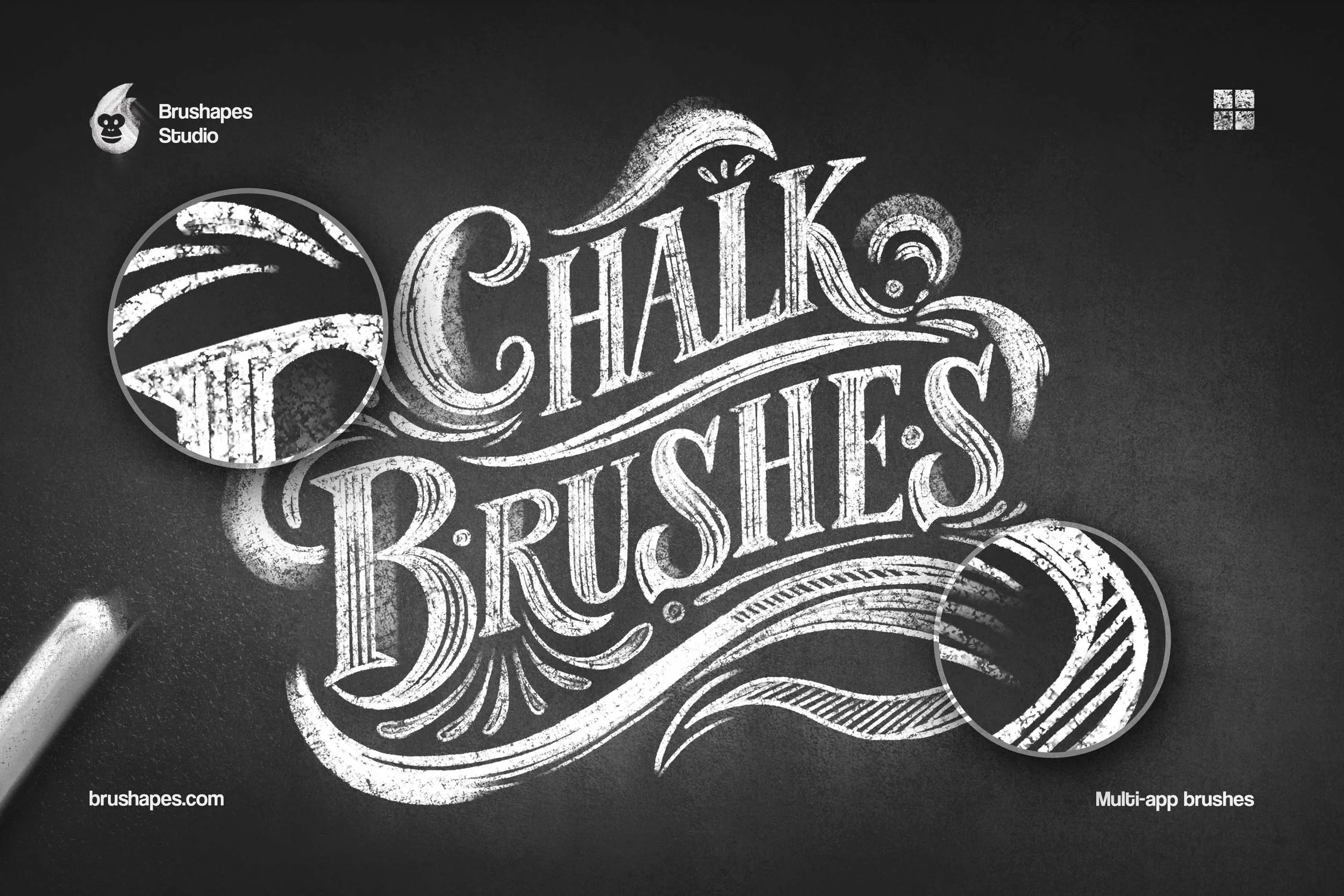
We like chalk when it's unreliable. These Procreate chalk brushes catch on rough slate, disappear into grain, break at the edge of a stroke, and still make words tangible to the point you feel white dust on your fingers. Café boards, classroom diagrams, old pub menus, bakery signs, sidewalk lettering — chalk has been doing typography's most human work for generations, so we wanted to keep that and make the chalky texture an authentic thing in your Brush Library.
Together with Olga Lysenkova, we built a set around how chalk behaves, both on screen and on heavyweight paper stock. There are dense sticks that lay down bright, confident marks for lettering and illustrations, plus soft brushes for dusty trails and backgrounds. Between those extremes are brushes that respond to pressure the way real chalk does, widening, thinning, breaking apart, and leaving dry grain inside the stroke.
“I borrowed an actual board for this. I drew, wiped, drew again, mostly to catch what my hands were doing when I wasn’t paying attention. Turns out I was rubbing constantly. Thumb, knuckle, or index finger as an art tool, heh. I suggested we build a rubbing tool, then asked what surface it needed to rub against, then hand-tested how far dust should travel from a line.”
-
Digital brushes that behave like a stick of chalk on a board: broken coverage, powder scatter along the edges, and strokes that build up instead of printing flat.
-
The chalk brushes are for drawing and lettering, from dense strokes to loose powder. The background brushes fill areas with board grain when you need a surface. The smudge tool adds nothing: it rubs what's already there into the board for glows, fades, and soft shadow.
-
Both. Full-color chalk sits cleanly on a dark ground, and the powder halo behaves the same in red or blue as it does in white.
-
No. If you can draw or letter at all, the brushes supply the chalk logic: coverage, drag, and dust do the convincing.
-
Not at all. They're there to save you a step. The background brushes let you build a board at any size and tone you like, and every brush works over your own scan or photo.
-
Yes. They're tuned for high-resolution work, so the grain stays chalk instead of turning to mush on posters, menu boards, packaging, and editorial spreads. Start on a large canvas for the best result.
-
A tablet or Apple Pencil is strongly recommended. Pressure and tilt produce the thick-and-thin and the build-up, and the smudge tool in particular wants a hand behind it. A mouse will get you through flat fills and stamps, but not much further.
The supporting tools matter just as much. The smudge brush moves existing chalk instead of painting new marks, making soft halos, rubbed edges, and subtle transitions. Background brushes and ready-made chalkboard textures provide convincing surfaces, with a grain that answers back from the very first stroke. Together, the toolbox covers the range that stylized illustration and retro typography run on: thick-and-thin lettering with ornament packed around it, powdery shading, dusty halos, and the surface holding it all together. Nothing here needs supplementing from another pack, which is the point.