

Joyful Crayon Brushes
How to Install & Use Guide
Joyful Crayon Procreate Brushes
Step 1
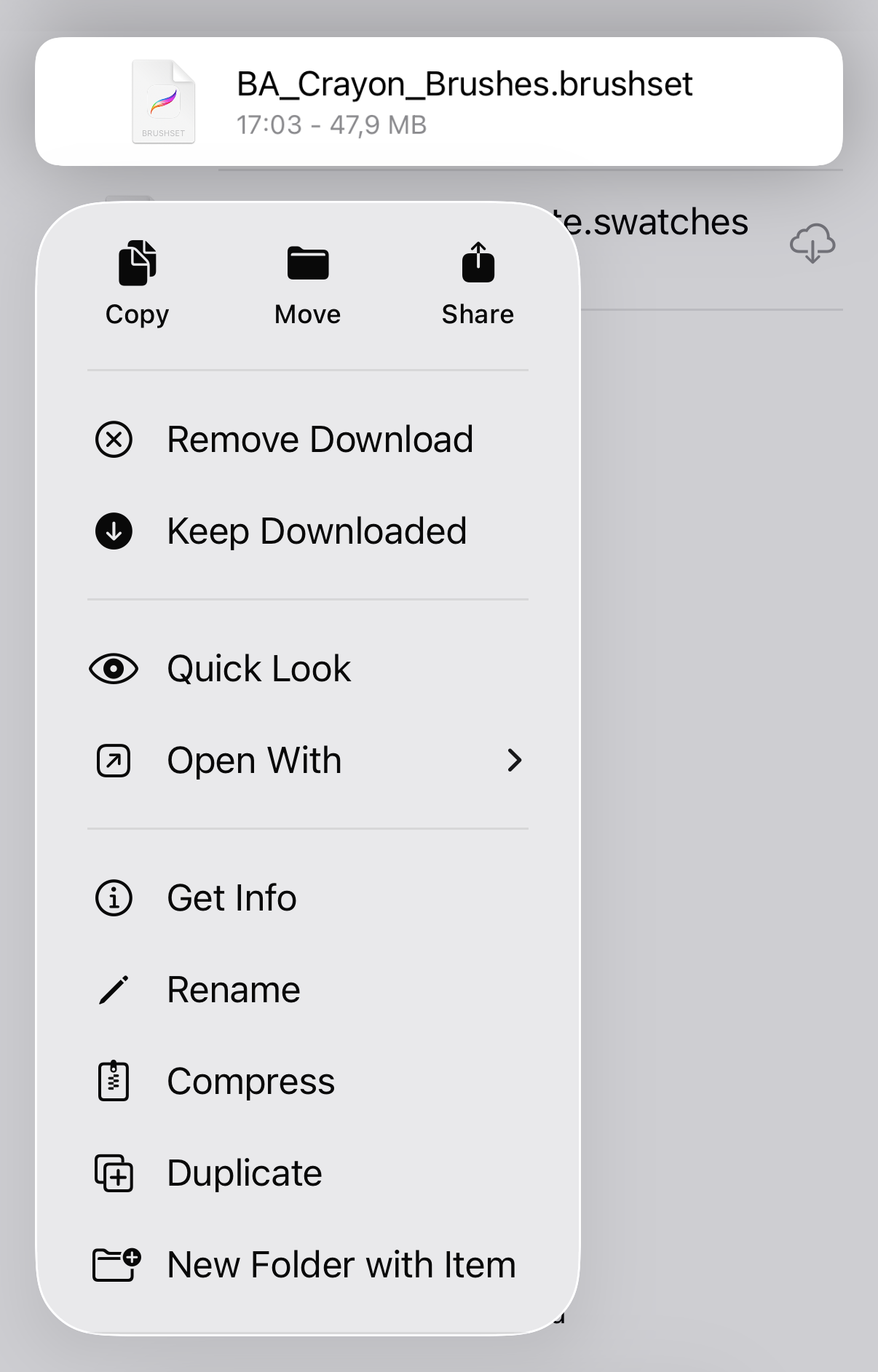
Locate and open the downloaded file named:
BA_Crayon_Brushes.brushset
In the contextual menu choose and press Share button.
Step 2
In the next menu choose and press Open in Procreate button.
Step 3
Locate and open the downloaded file named:
BA_Crayon_Brushes_Palette.swatches
In the contextual menu choose and press Share button. In the next menu choose and press Open in Procreate button.
Joyful Crayon Photoshop Brushes
Step 1
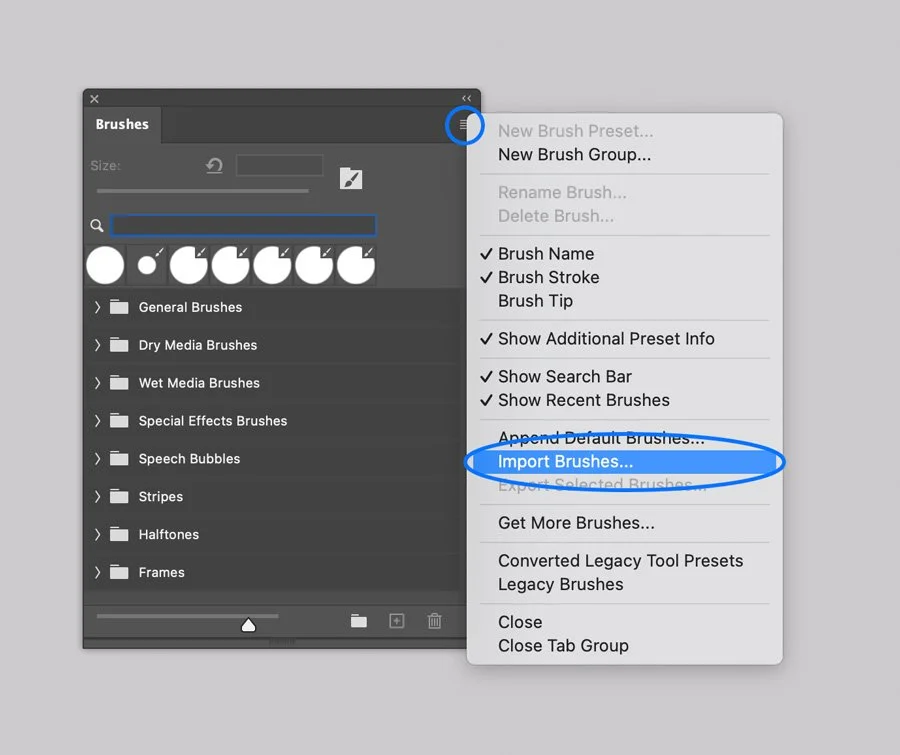
In Adobe Photoshop, Open the Brushes panel (Window > Brushes).
Click the panel's upper right corner button to open drop-down menu.
Step 2
Select the Import Brushes option from the menu and browse the files named:
BA Crayon Brushes.abr
Step 3
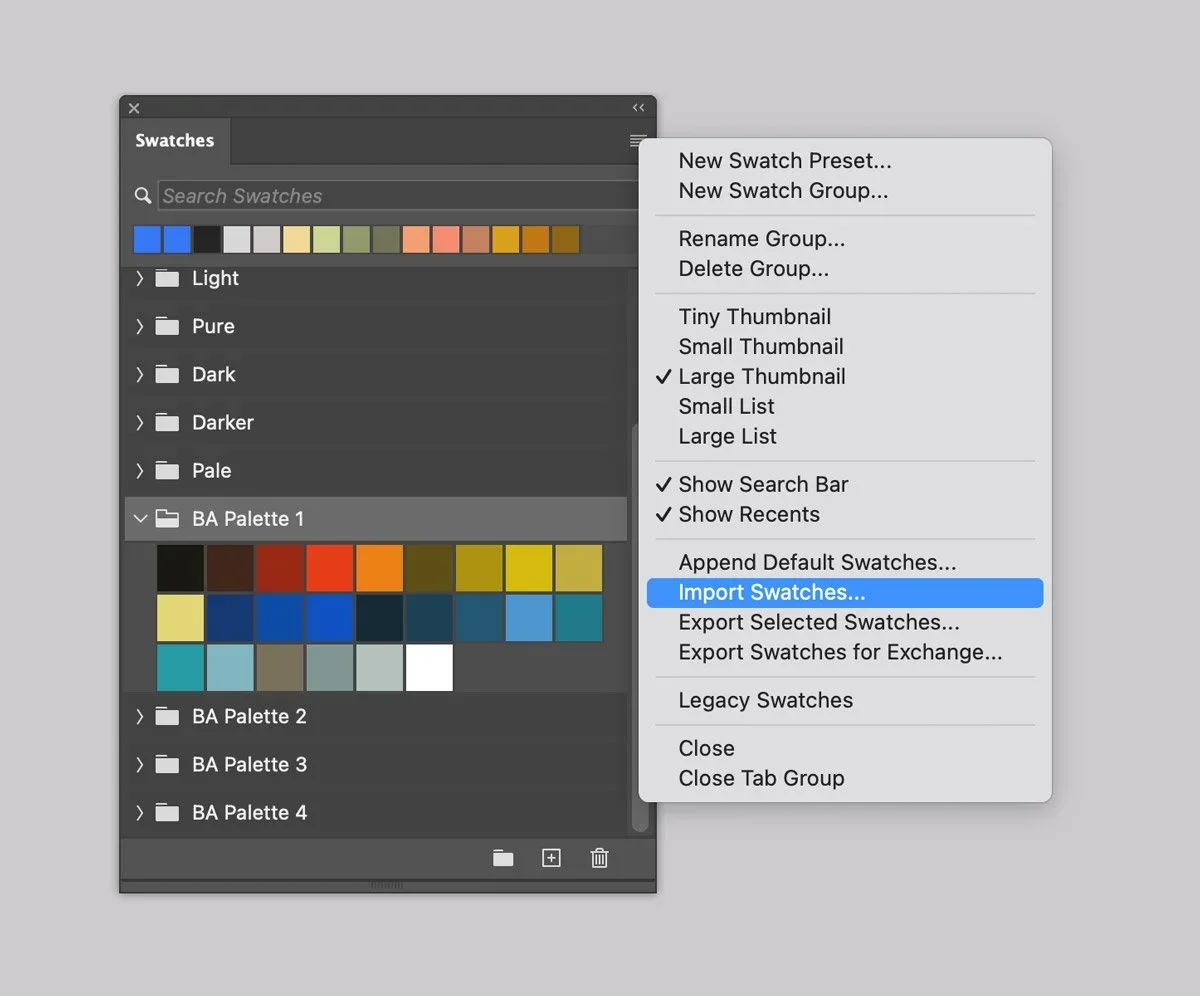
In Adobe Photoshop, Open the Swatches panel (Window > Swatches).
Click the panel's upper right corner button to open drop-down menu.
Select the Import Swatches option from the menu and browse the files named:
BA Crayon Brushes Palette.aco
Joyful Crayon Illustrator Brushes


Step 1
In Adobe Illustrator, open the Brushes panel (Window > Brushes, or F5).
Step 2
Open the Brush Libraries Menu in the bottom left of the Panel (the bookshelf icon).
Step 3
Select the Other Library option and browse the BA Crayon Brushes.ai file.

Step 4
Open the Swatches panel (Window > Swatches). Select the Other Library option and browse files:
BA Crayon Brushes Palette.ai


Drawing with the Brushes
Select the Brush Tool from the Tools Menu (B).
Select one of the brushes on the Brushes Tab by clicking on it.
Draw a line.
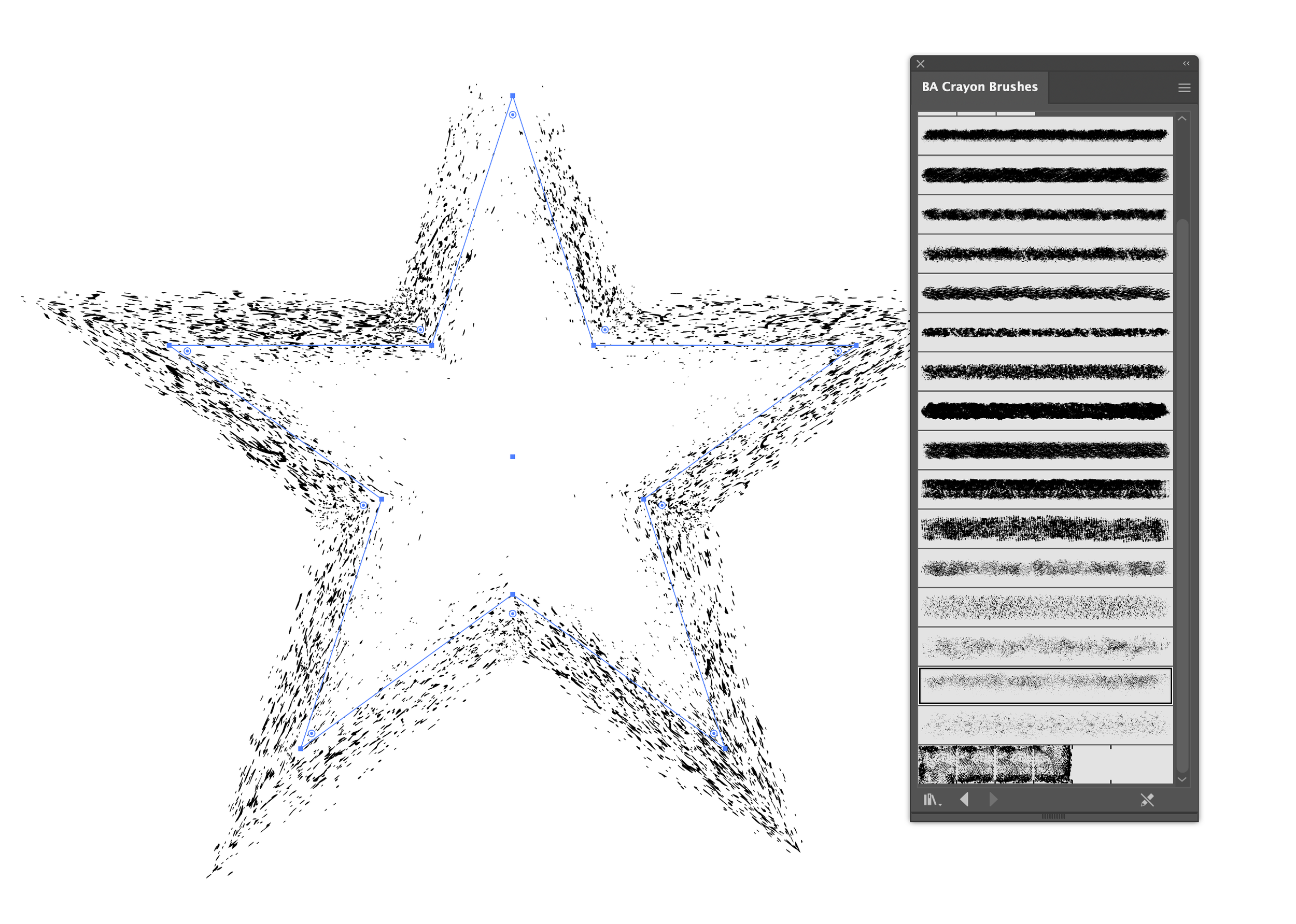

Or, you can apply brushes to existing paths and shapes:
Select an existing line or vector shape with Selection tool (V).
Select one of the brush icons on the Panel, and it will be applied to your line.
Adjust the render by changing Stroke thickness in the Appearance panel.
Warning
Texturing and shading with scatter brushes in Adobe Illustrator can be a memory consuming process and may affect performance.
If you run an older machine (e.g., pre-2020) with less than 8GB of RAM, you may experience slower-than-usual performance.
Joyful Crayon Affinity Brushes

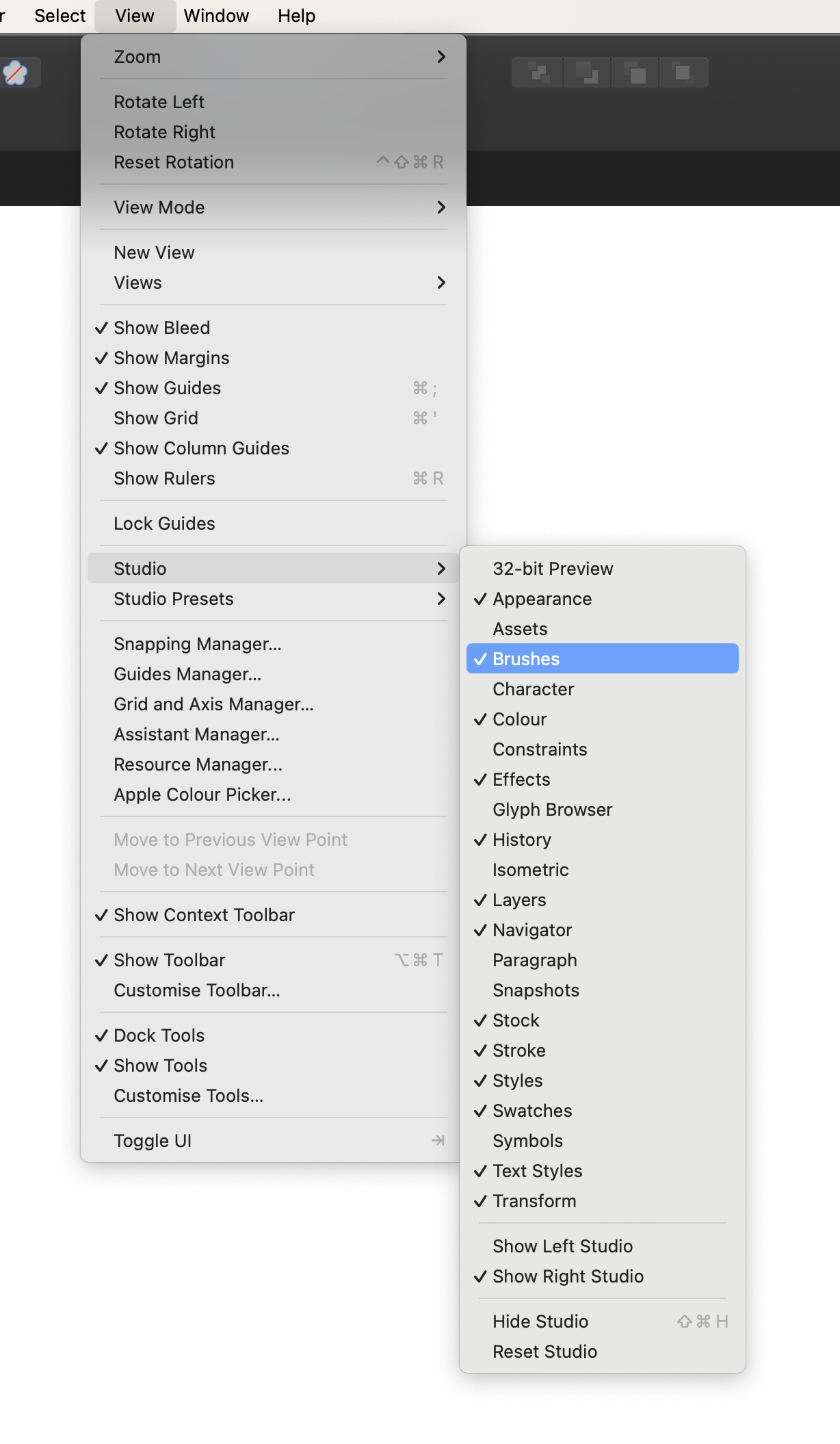
Computer. Step 1
In Affinity Designer open the Brushes panel (Window > Brushes).
Computer. Step 2
Open the drop-down menu in the upper right corner of the Panel.

Computer. Step 3
Select the Import Brushes option on the Menu and browse files on your device:
BA Crayon Brushes.afbrushes
BA Vector Crayon Brushes.afbrushes
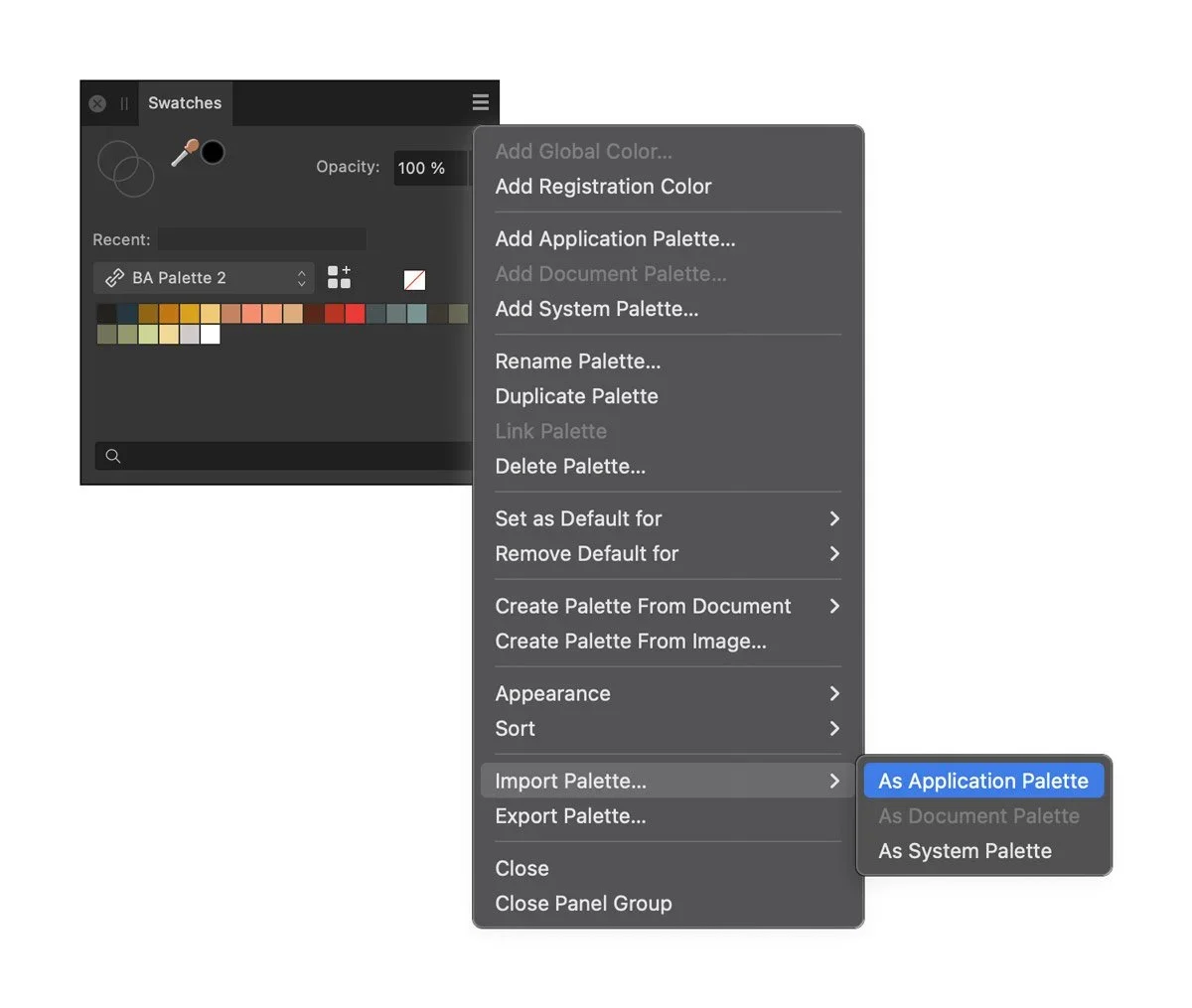
Computer. Step 4
Open the Swathces panel (Window > Swatches). Open the drop-down menu in the upper right corner of the Panel.
Select the Import Palette option on the Menu and browse files on your device:
BA Crayon Brushes Palette.afpalette
Tablet. Step 1
In Affinity Designer app open the Brushes panel.
Tablet. Step 2
Open the drop-down menu in the upper right corner of the Panel.
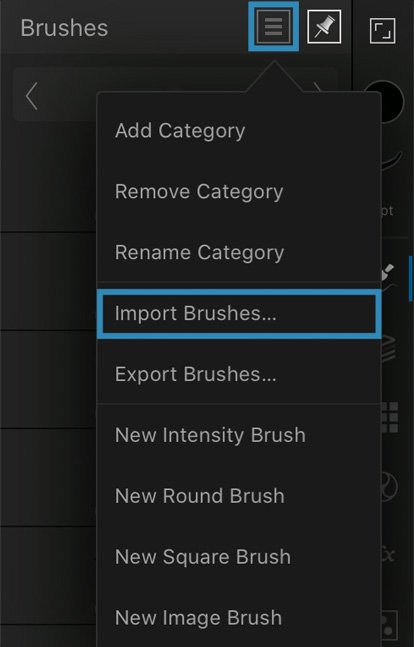

Tablet. Step 3
Select the Import Brushes option on the Menu and browse files on your device:
BA Crayon Brushes.afbrushes
BA Vector Crayon Brushes.afbrushes
Tablet. Step 4
Select the Import Palette option on the Menu and browse files on your device:
BA Crayon Brushes Palette.afpalette
Joyful Crayon Clip Studio Brushes
Computer. Step 1.
In Clip Studio Paint open the Brushes Panel (Window > Sub Tool: Brush)

Computer. Step 2.
Open the drop-down menu in the upper left corner of the Panel.
Select the Import sub tool option, and browse the brushes one by one.

Tablet. Step 1.
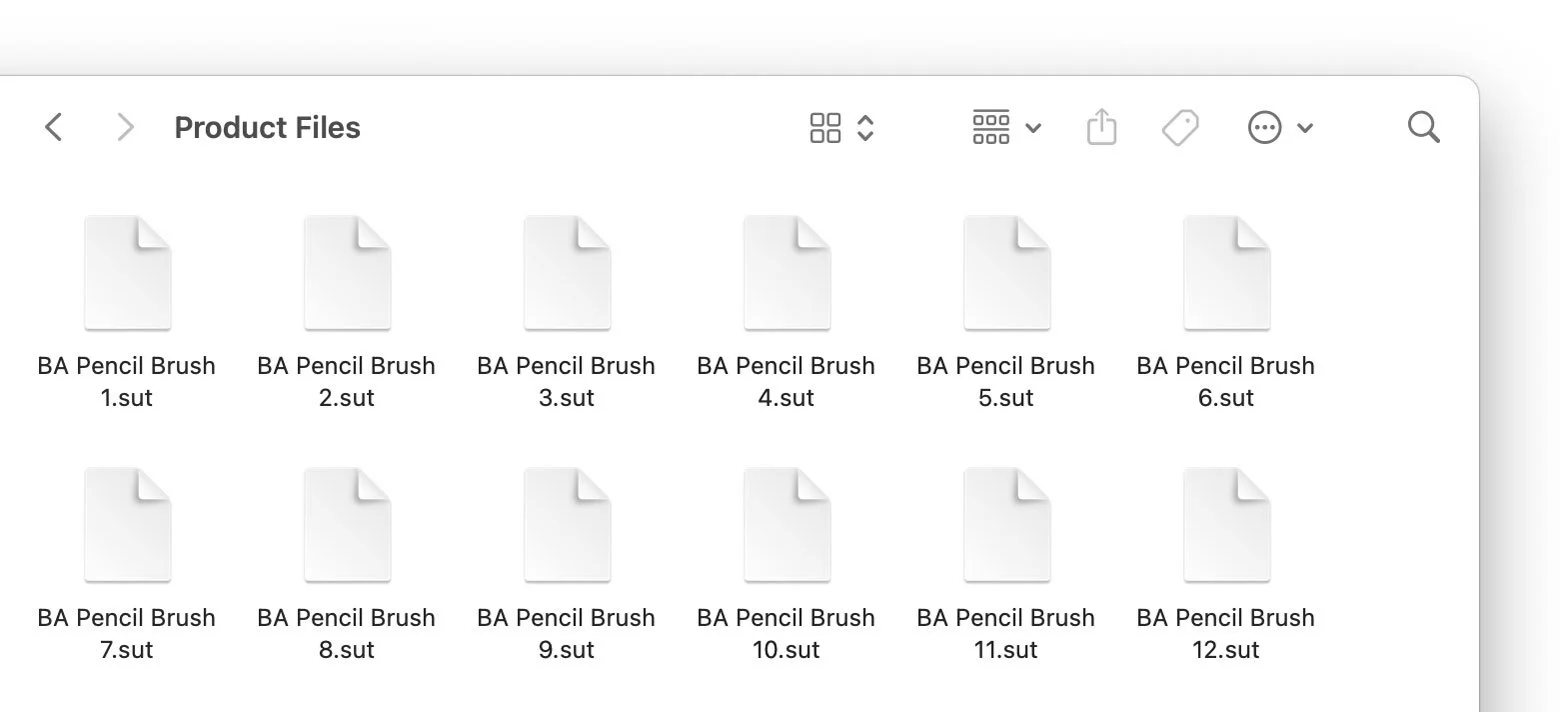
Open the downloaded folder, and browse Product files named BA Pencil Brush 1.sut, BA Pencil Brush 2.sut, and so on.
Open the contextual menu on each brush, and select the Share option.
Tablet. Step 2.
Next, Select ‘Clip Studio’ icon to open the file. Repeat these actions for each brush file.
